

Your interests. Your inbox.
Your choice.
Select your newsletters below. Add your email.
A little more clarity is on its way.

Already subscribed? Manage your newsletter choices. For your privacy, changing existing preferences may require a secure email sign-in.
Will emails contain the full articles?
New Stories delivers full articles to your inbox. This Week, Clearly brings a weekly roundup, and Worth a Try shares a useful idea or discovery.
What happens if I choose all three?
You will receive each new article plus the weekly roundup and twice-monthly discovery edition. Roundups may revisit stories you have already seen.
More informed, more connected, more hopeful.
 The Algorithmic JournalArtificial intelligence. Human perspective.
Sample preview. This illustrates the newsletter format; editions vary.
Once a week · Sample edition
This Week, Clearly
Three worthwhile reads. One useful idea. A little more clarity for your week.
This sample brings together stories about the things we keep, the choices we make and the work technology promises to save.
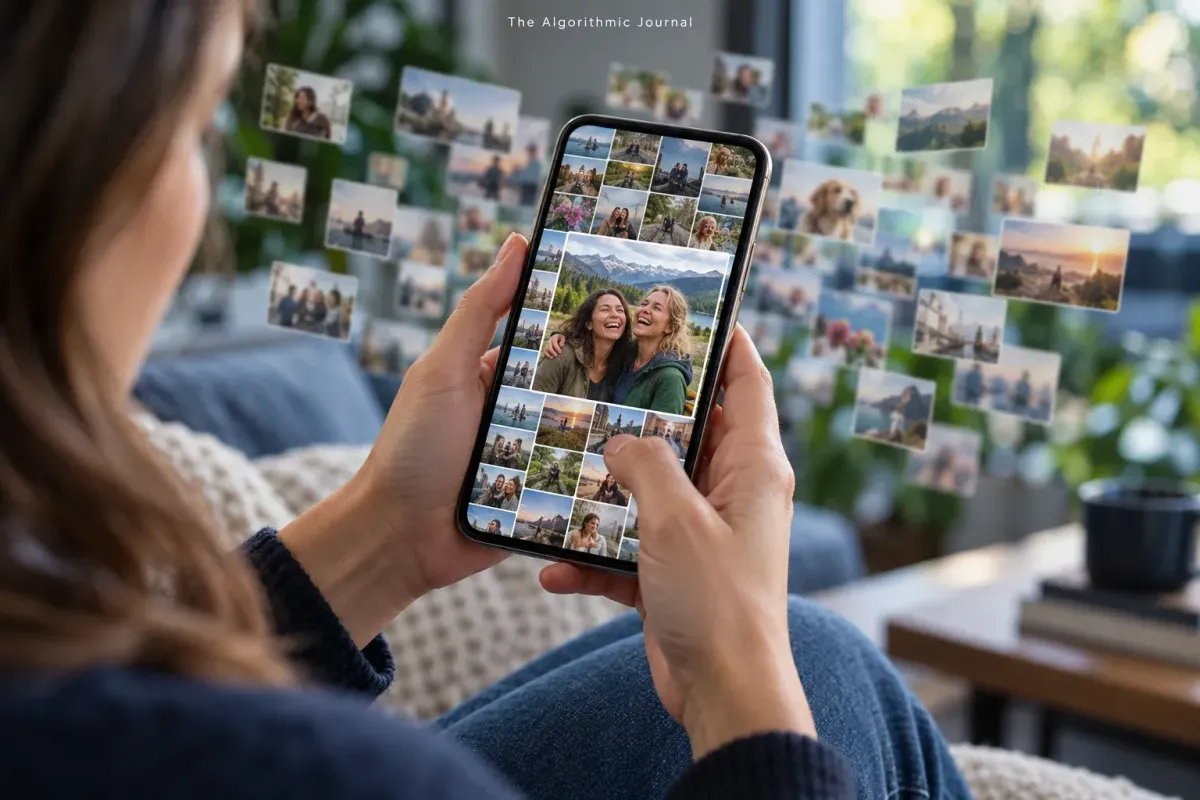
1. Find the photos that matter
A camera roll can hold thousands of pictures while hiding your favorite moment. Start with one event, use the clues you remember and save a small collection with its story.
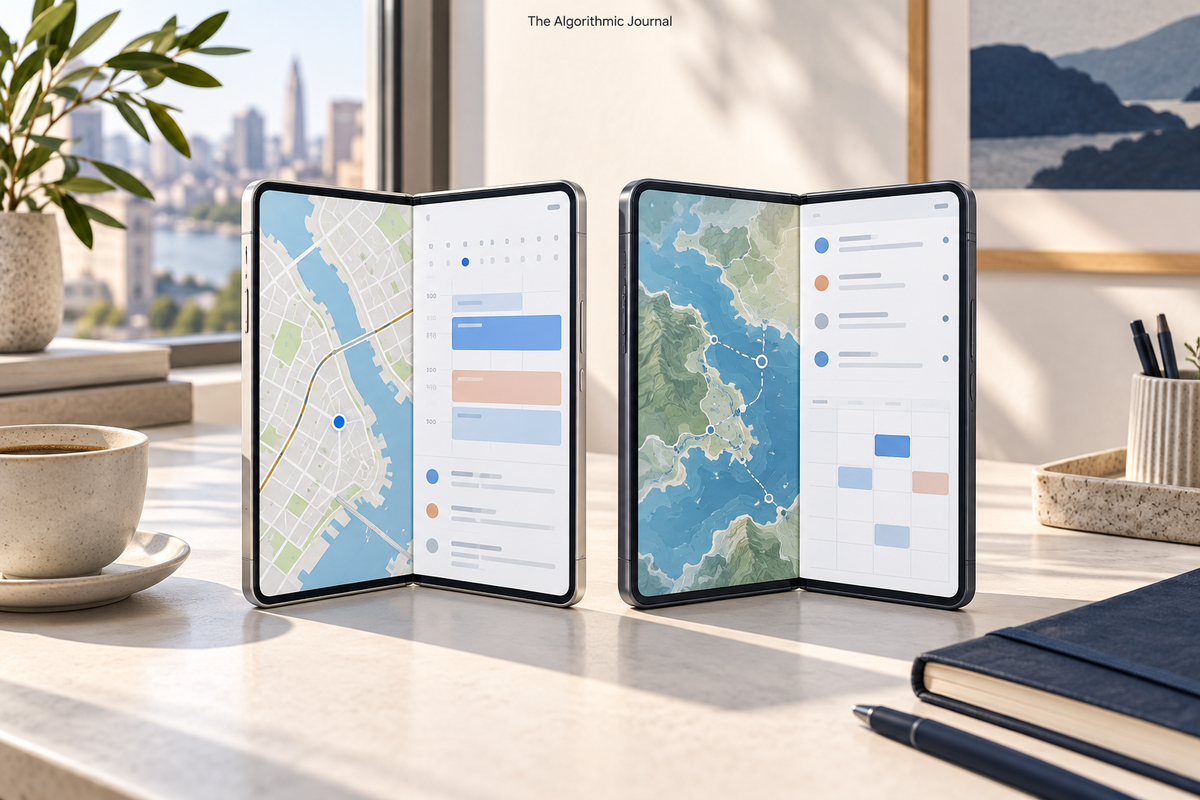
2. Does a bigger phone screen earn its place?
Our folding-phone comparison starts with ordinary tasks: reading an attachment, checking dates and booking a hotel. The useful question is what the extra screen would help you finish.

3. When convenience creates more work
Apps and shortcuts promise an easier day. This story asks where the work actually goes, and how to decide which conveniences deserve your time.
One thing to try
Before buying a new device, name three recurring tasks you expect it to improve. Try those same tasks on the device you already own.
A worthwhile week does not require keeping up with everything. Choose what helps you.
The Algorithmic JournalArtificial intelligence. Human perspective.Sample preview. This illustrates the newsletter format; editions vary.
Twice a month · Sample edition
Worth a Try
Make one memory easier to find.
You do not have to organize your entire photo library to make it more useful. This small project starts with one event and the pictures you would actually want to show someone.
What you need
Your existing photo app and one occasion you remember: a trip, a birthday or an ordinary afternoon worth keeping.
Give it a try
- Find the occasion by date, place or something visible in a picture.
- Choose up to ten meaningful photos. Ten is a manageable stopping point, not a rule.
- Put them in a clearly named album, such as “Beach weekend, May 2026.”
- Add names or a short note to the pictures whose stories might otherwise be forgotten.
One thing to remember
An album organizes photos; it does not create an independent backup. Keep a separate copy of pictures you cannot replace.
Your result: one small collection you can revisit without scrolling through everything else.
The Algorithmic JournalArtificial intelligence. Human perspective.Sample preview. This illustrates the newsletter format; editions vary.
Whenever we publish · Full-article sample
Your Phone Has Thousands of Photos. Why Can’t You Find the Ones That Matter?
You know the picture. Two friends laughing across a table. Terrible lighting. Perfect moment. You just cannot remember whether it was last spring or three phones ago.
Meanwhile, the parking-space photo from Tuesday is right there.
Finding meaningful pictures gets easier when you separate three jobs: locating an image, choosing the ones worth revisiting, and preserving the story behind them. A better search box helps with the first. The other two need a little human attention.
Three approaches, one photo problem
TAJ compared published Apple and Google guidance against the same hypothetical collection: a weekend away containing restaurant pictures, beach scenes, screenshots, and several nearly identical group shots. The goal was to retrieve one particular dinner picture and preserve why it mattered.
We assessed setup effort, future retrieval, added cost, and privacy implications. This is a comparison of documented workflows, not a timed app test or a search-accuracy benchmark. No private photo library was accessed.
1. Browse by date
If you remember the weekend, date browsing gives you a useful starting point without first organizing everything. Apple documents jumping to a month and year in iCloud Photos.
For our scenario, that narrows the collection to the trip. It still leaves the reader choosing among the dinner pictures. If the date is the missing clue, this route offers less help.
The tradeoff: little preparation, but another visual hunt each time. It adds no new service when used in your existing library; storage charges depend on your setup. Sorting by date itself does not require sharing the pictures with anyone new.
2. Search for what you remember
Try the place, a person you have labeled, or something visible in the scene. Apple's iCloud search guidance includes places, categories, dates, text, and captions. Google Photos documents searches for people, things, and places, with exact-text searching available for captions and other text.
In the weekend example, a restaurant name or a visible detail provides a better clue than scrolling through every beach picture. But finding the right scene does not establish which near-duplicate carries the moment you want.
Search has relatively little manual setup for visible subjects, though labeling people adds work. Stay within the service you already use before buying anything. Google's conversational Ask Photos requires opting in, varies in availability, and remains experimental. Review the relevant data settings before enabling extra features.
3. Build a small collection with context
Choose the dinner picture deliberately. Put it in a clearly named personal album, such as “Beach weekend, May 2026,” and add a note explaining the moment.
Apple documents albums and searchable captions. Google documents albums with text you can place beside the pictures. The wording might be: “Our first dinner together after the move. This is when everyone finally relaxed.”
This route takes the most attention upfront. Its advantage in our scenario is that you have already chosen the picture and recorded the detail the image cannot prove. You can return to the album without reconstructing the trip.
It can use the tools already in your library, with no extra organizing app. Keep the album personal unless you mean to share it. Apple notes that caption changes in a Shared Photo Library are visible to its participants.
Use search to gather. Use judgment to choose.
The comparison points to a combination: use dates or search to reach the right group of images, then save a small selection with context. Reorganizing the entire archive is optional.
Start with one event. Pick ten pictures you would actually want to show someone. Ten is a stopping rule, not a scientifically established ideal.
Give the album an ordinary, useful name. Add names and a sentence about what happened to the few pictures whose meaning could otherwise disappear. “Dad teaching Sam his pancake trick” offers something “IMG_4821” never will.
Then close the app. You have made one memory easier to revisit, which is a perfectly reasonable day's work.
An album is not a second copy
Organization and preservation are separate jobs. The Library of Congress recommends selecting important photographs, adding descriptive information, and keeping copies in different places.
An album inside your current library does not itself provide that independent protection. Apple warns that deleting an image with iCloud Photos enabled also deletes it from other devices using that account.
Before a major cleanup, keep a separate copy of the pictures you cannot replace and confirm you can open it. For the longer-term access question, TAJ's guide to your digital life after death explains why someone also needs a handoff plan.
A tidy camera roll is satisfying. Being able to find a person, a place, and the reason you smiled is better.